Table of Contents
Migrate - Dashboards
Migrate - Dashboards allows Administrators to configure settings for dashboards and reports, as well as enable Estimator, and embed custom dashboards into Blueprint.

Updated
by Stefenie Stockbridge
Table of Contents
The Migrate - Dashboards settings allow Instance Administrators to configure standard Dashboards and Reports, create custom Dashboards and Reports, and enable the Estimator Dashboard.
Accessing Migrate - Dashboards
- From Settings, expand RPA Management and select Migrate - Dashboards
Scope Modal - Call Tree Process Limit
Instance Administrators may change the scope modal (call tree process limit) by adjusting the default value of 200 as needed.
Enable Estimator Dashboard
The Estimator Dashboard is enabled by default. Instance Administrators can disable it by unchecking this option.
When the Estimator Dashboard is enabled, two additional settings become available:
- Automatically Calculate Estimations on Import — When checked, estimations run automatically as flows are imported. When unchecked, users trigger estimations manually. Note that enabling this option will increase import time.
- Estimation with Local Variables — During export, users can choose whether to enable local variables in Power Automate Desktop. Exports with local variables almost always have reduced code complexity and fewer generated variables, which improves estimations. Enable this option to have estimations assume all exports will use local variables.
Custom Dashboards and Reports
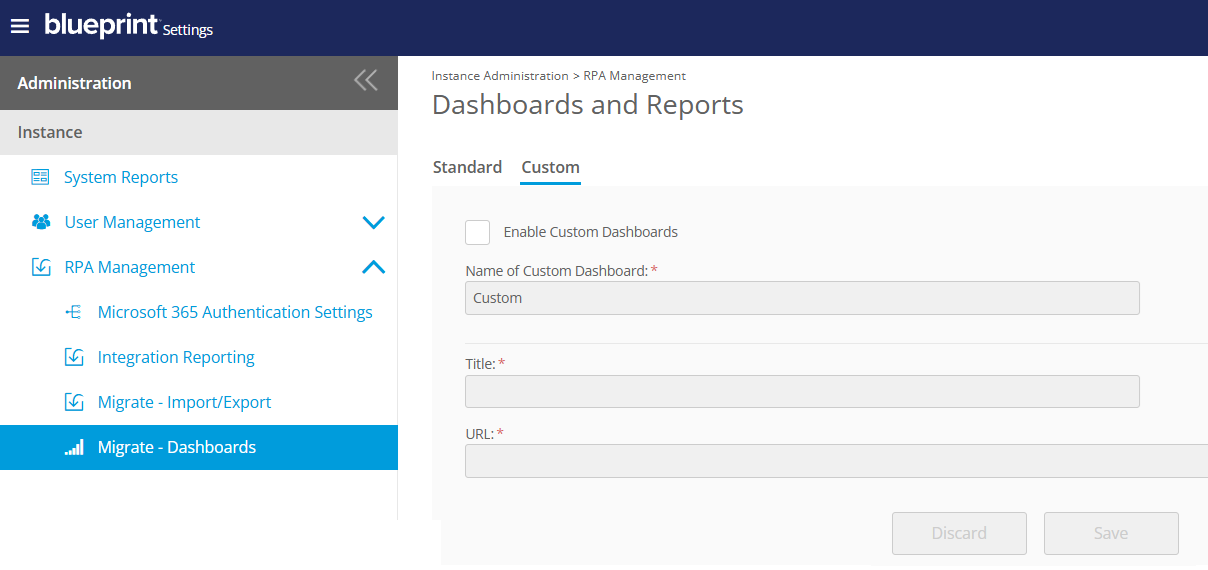
Instance Administrators may link to and embed external BI reports and dashboards into Blueprint. To begin:
- Select Custom tab
- Toggle on Enable Custom Dashboards
- Enter the name of the Custom Dashboard or Report
- Enter the title of the Custom Dashboard or Report
- Enter the public URL of the Custom Dashboard or Report
How did we do?
Migrate - Import/Export
Migrate